Complete Opportunity Playbook questions/notes manually or with Skillibrium's Cortex|AI
Applicable Roles
- All
Opportunity owners can provide answers to questions or notes within an opportunity by utilizing text fields that support both formatted text and images. They have two options for providing answers:
- Manual Input: Opportunity owners can enter their answers directly.
- AI Assistance: Alternatively, opportunity owners can leverage Skillibrium's AI, known as Cortex|AI, by uploading content into the Skillibrium platform. This content will then be processed by the AI to generate enhanced answers.
This article demonstrates how opportunity owners can add answers in a sales process manually or by utilizing Cortex|AI.
When an opportunity owner clicks an opportunity, the sales process tab will be displayed by default. The opportunity's playbook stages are labeled across the top, with activities for each stage organized into categories.
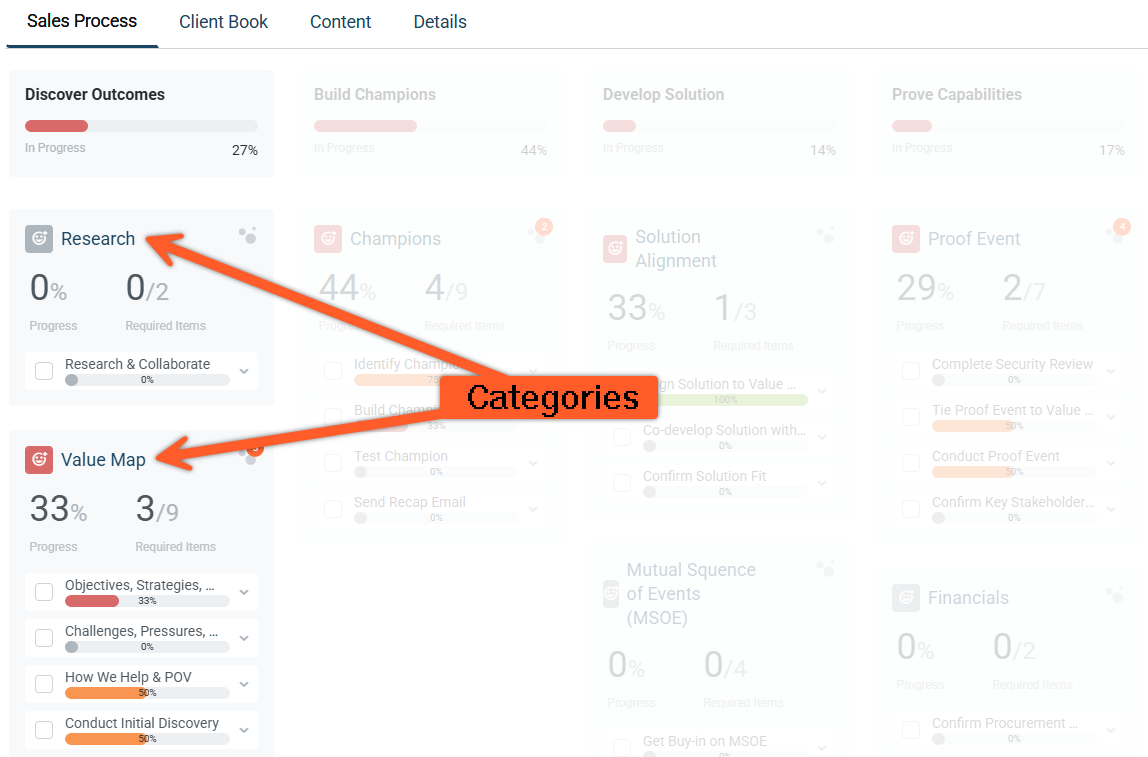
Activities can have a list of items such as learning videos, templates, links and text boxes to capture details of the opportunity.
Complete Opportunity Playbook questions/notes manually (without using Cortex AI)
- Click EXECUTE in the menu bar and click Opportunities.
- Select an opportunity.
- Upon page load, the sales process overview tab will display all playbook stages, including their categories, activities, items, and the progress status.
- Click a category or activity name to open the sales process right panel.
You can also click the << icon to the left of Stages to extend the playbook's full width which gives you more space to work. - Click the text field area to add your answers or to provide additional details as notes.
- To indicate the completion of an activity, tick the checkbox next to the activity name.
Alternatively, you can use the Mark as Complete checkbox on the right panel of the sales process to mark completion at the item level. This updates your progress as you complete each activity or the items under each activity. - Continue to update your answers or notes as further conversations take place for this opportunity.
Complete Opportunity playbook questions/notes using Cortex|AI
Cortex|AI, our proprietary AI engine, serves as a powerful query retrieval tool within Skillibrium. Opportunity owners can leverage this AI by uploading content such as meeting plans, champion decks, call transcripts, or proposals into the Skillibrium platform. When you upload content pertinent to your opportunities, Cortex|AI generates relevant and effective sales playbook answers by indexing and analyzing the uploaded material. If Cortex|AI identifies a relevant answer or information, the system triggers an alert to notify the opportunity owner of the new insights.
Instructions for Enabling the Sales Process AI Features
To leverage Skillibrium's AI in the sales process tab, Skillibrium admins will need to turn on the AI settings in their Skillibrium environment. If you do not have admin access, reach out to a Skillibrium administrator within your organization to follow the steps below:
- Click the user profile menu.
- Click Company Settings.
- Click the AI Details tab.
- Toggle on the option to enhance the experience with advanced AI features.
- Toggle on the option for Sales Process Response.
To update your opportunity sales playbook answers based on Cortex|AI suggestions, follow the steps below:
- Click the notification bubble that appears on the category card or the item of an activity (
).
- A right panel will open, displaying the answers generated by Cortex|AI. Review the suggested answers.
- To add a suggested answer, click the Plus icon (+).
- If you wish to ignore or copy the suggestion, click the kebab menu (
).
- Mark each question/note as completed to update your progress.
- Update your answers as further conversations take place by uploading any new content relevant for this opportunity. The system will trigger an alert to notify opportunity owners of the new insights to the questions/notes in the sales process.
The selected AI generated answers will be appended to your existing answers. They will not overwrite your pre-existing answers.